How to Fork a Repository
In this tutorial, you will learn how to fork a GitHub repository and create your own copy of a project that you can freely experiment with and contribute back to.
What is Forking?
Forking a repository creates a personal copy of someone else's project in your GitHub account. This allows you to:
- Experiment with changes without affecting the original project
- Propose changes to the original project via pull requests
- Use someone else's project as a starting point for your own idea
- Contribute to open-source projects
When Should You Fork?
You should fork a repository when you want to:
- Contribute to an open-source project
- Use an existing project as a template
- Experiment with code without affecting the original
- Create your own version of a project
Steps to Fork a Repository
Step 1: Navigate to the Repository
Go to the repository you want to fork.
Make sure you're logged into your GitHub account.
https://github.com/sanjay-kv/Learn-GitHub
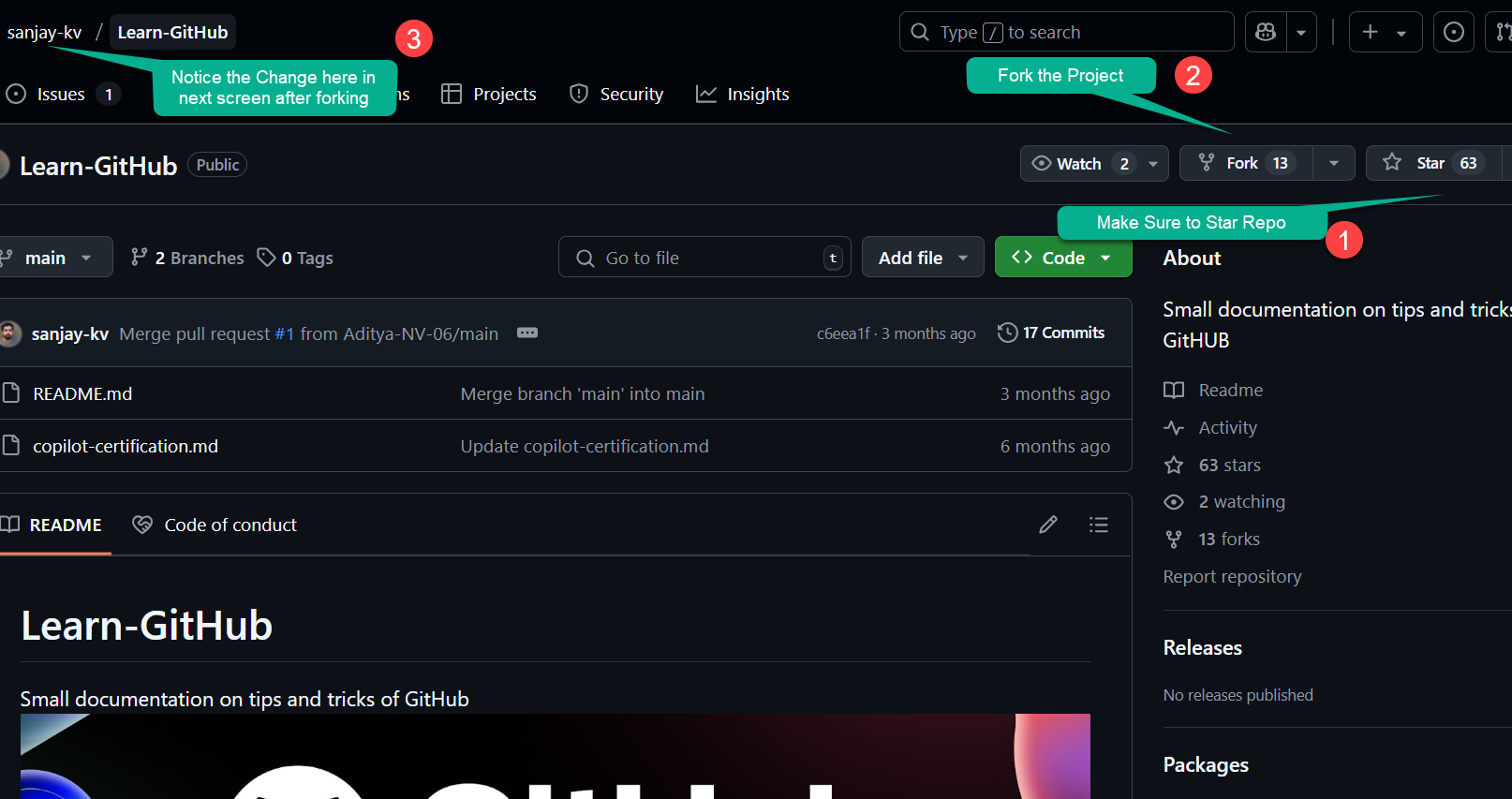
Step 2: Click the Fork Button
In the top-right corner of the repository page, you'll see a "Fork" button. Click on it to start the forking process.
GitHub will show you a screen asking where you want to fork the repository (usually to your personal account).
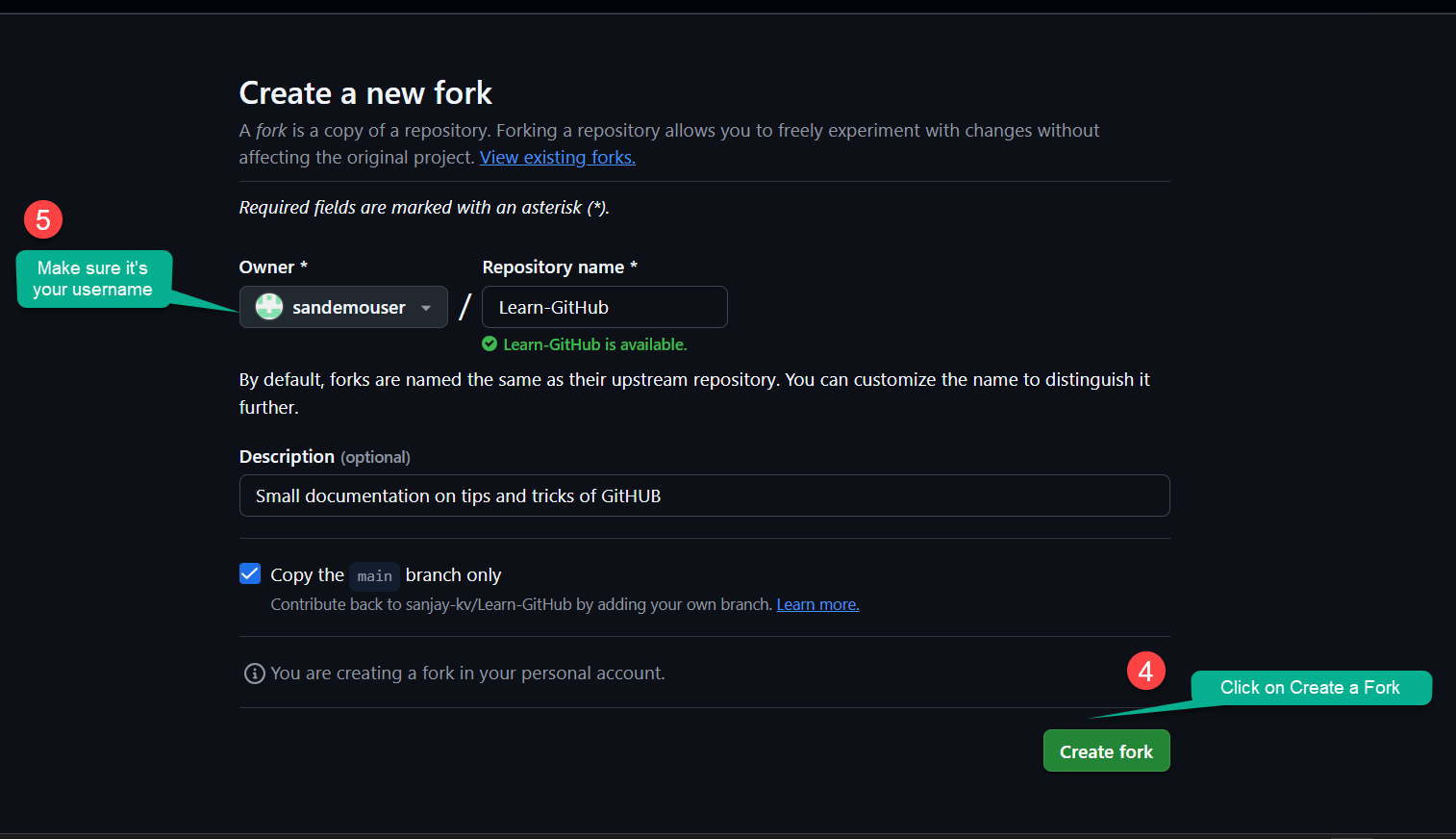
Step 3: Wait for the Fork to Complete
GitHub will create a copy of the repository under your account. This process usually takes a few seconds. Once complete, you'll be redirected to your forked repository.
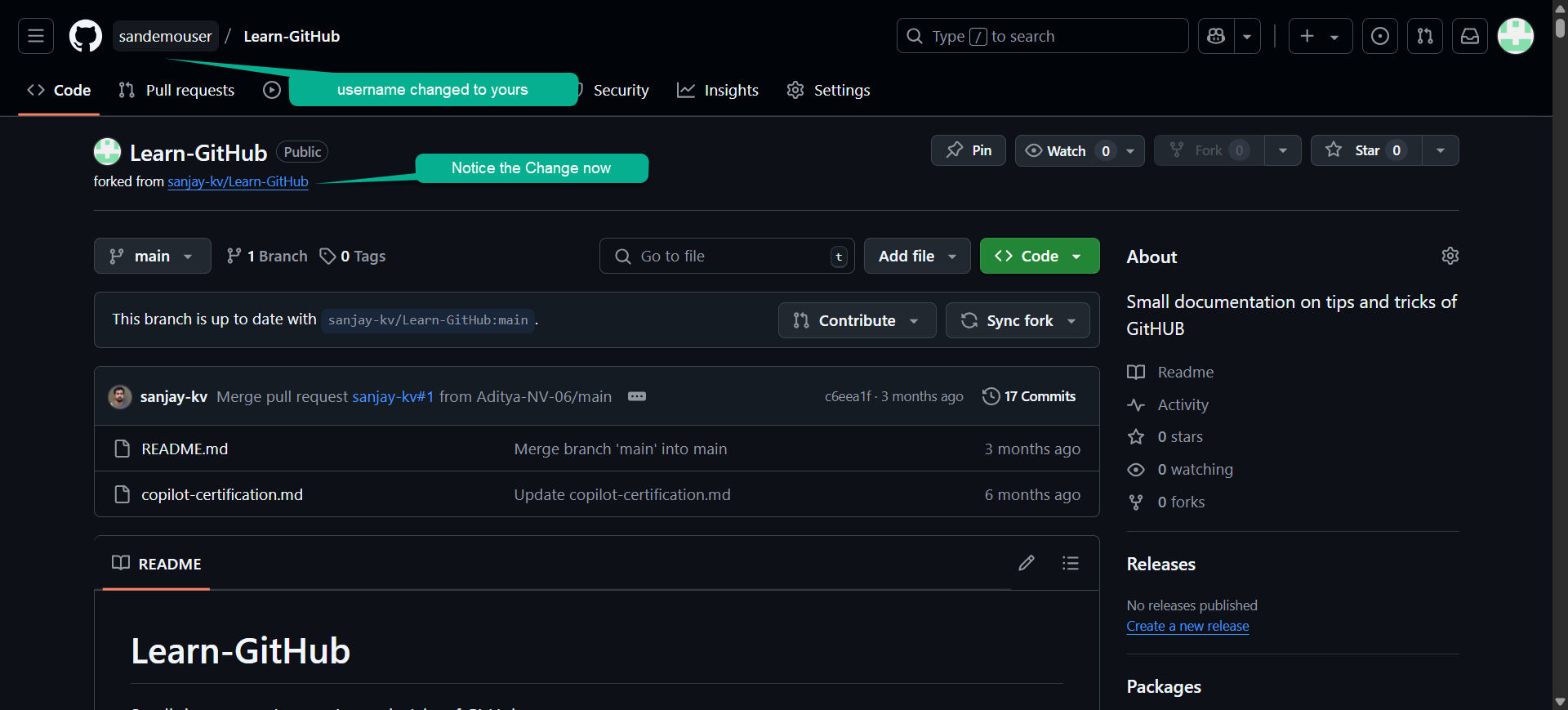
Step 4: Verify Your Fork
After forking, you should see:
- The repository name with your username:
yourusername/Learn-GitHub - A note indicating "forked from sanjay-kv/Learn-GitHub"
- All the files and branches from the original repository
- Always fork before contributing to open-source projects
- Keep your fork synced with the original repository regularly
- Create descriptive branch names for different features or fixes
- Write clear commit messages explaining what and why
- Follow the project's contribution guidelines if they exist
- Test your changes before submitting a pull request
- Be respectful and patient when waiting for pull request reviews
- Start with small contributions to understand the project's workflow
Fork vs Clone
Understanding the difference is important:
| Aspect | Fork | Clone |
|---|---|---|
| Location | Creates a copy on GitHub | Creates a copy on your local machine |
| Purpose | Contributing to others' projects | Working on your own or cloned projects |
| Connection | Maintains link to original repo | No direct link to original repo |
| Visibility | Public on your GitHub profile | Only on your computer |
Deleting a Fork
If you no longer need your fork:
- Go to your forked repository
- Click "Settings"
- Scroll to the bottom
- Click "Delete this repository"
- Confirm by typing the repository name
Deleting a fork is permanent and cannot be undone. Make sure you have backed up any important changes.
Conclusion
Forking is a powerful feature that enables collaboration and experimentation in the GitHub ecosystem. By forking repositories, you can contribute to open-source projects, learn from others' code, and create your own versions of existing projects without affecting the original.

Your vote helps us improve our docs.
All our docs are open source. Found a typo, want to add detail or have a better explanation? Anyone can contribute.
Comments
Powered by GitHub Discussions